> ## Documentation Index
> Fetch the complete documentation index at: https://phylaxsystems-docs-project-incidents.mintlify.site/llms.txt
> Use this file to discover all available pages before exploring further.
# Projects
> Create and manage projects in the Credible Layer dApp
Projects are the organizational unit in the Credible Layer dApp. Each project represents a protocol or set of smart contracts that you want to protect with assertions.
## What are Projects?
A project groups together:
* One or more smart contract addresses
* Assertions that protect those contracts
* Project metadata (name, description, target chain)
Projects enable you to manage all your protocol's assertions from a single interface.
## Creating a Project
To create a new project:
1. Navigate to the "Projects" tab in the dApp navigation bar
2. Click "Create a project"
3. Enter project details:
* **Project Name**: Typically matches your protocol or contract name
* **Project Description**: Brief explanation of what your project does
* **Target Chain**: The blockchain where your contracts are deployed
4. Click "Continue"
5. Add contract addresses:
* Enter each contract address you want to protect
* Only contracts where your wallet is authorized can be added
* The dApp verifies admin access via the network's admin verifier (often owner-based)
6. Review your project details
7. Click "Save and publish" to create the project
 Only authorized admins can create a project for a contract. Most deployments use owner-based verification by default. See [Ownership Verification](/credible/ownership-verification) for details.
For contracts that don't pass the default verifier, a [Manual Verification](/credible/manual-verification) process may be available.
## Managing Projects

Once created, you can manage your project through the project dashboard:
### View Project Details
* See all contract addresses in the project
* View project metadata
* See all assertions
* See all events (timeline for the project)
* See all [incidents](/credible/dapp-incidents)
### Add or Remove Contracts
* Add new contract addresses to your project
* Remove contracts that are no longer active
* Update contract information
### Deploy Assertions
* Submit assertions to your project via `pcl`
* Link assertions to specific contracts through the dApp
* View all active assertions protecting your contracts
Only authorized admins can create a project for a contract. Most deployments use owner-based verification by default. See [Ownership Verification](/credible/ownership-verification) for details.
For contracts that don't pass the default verifier, a [Manual Verification](/credible/manual-verification) process may be available.
## Managing Projects
Once created, you can manage your project through the project dashboard:
### View Project Details
* See all contract addresses in the project
* View project metadata
* See all assertions
* See all events (timeline for the project)
* See all [incidents](/credible/dapp-incidents)
### Add or Remove Contracts
* Add new contract addresses to your project
* Remove contracts that are no longer active
* Update contract information
### Deploy Assertions
* Submit assertions to your project via `pcl`
* Link assertions to specific contracts through the dApp
* View all active assertions protecting your contracts
 For detailed instructions on deploying assertions, see the [Deploy Assertions guide](/credible/deploy-assertions-dapp#step-4-deploy-the-assertion).
### Project Settings
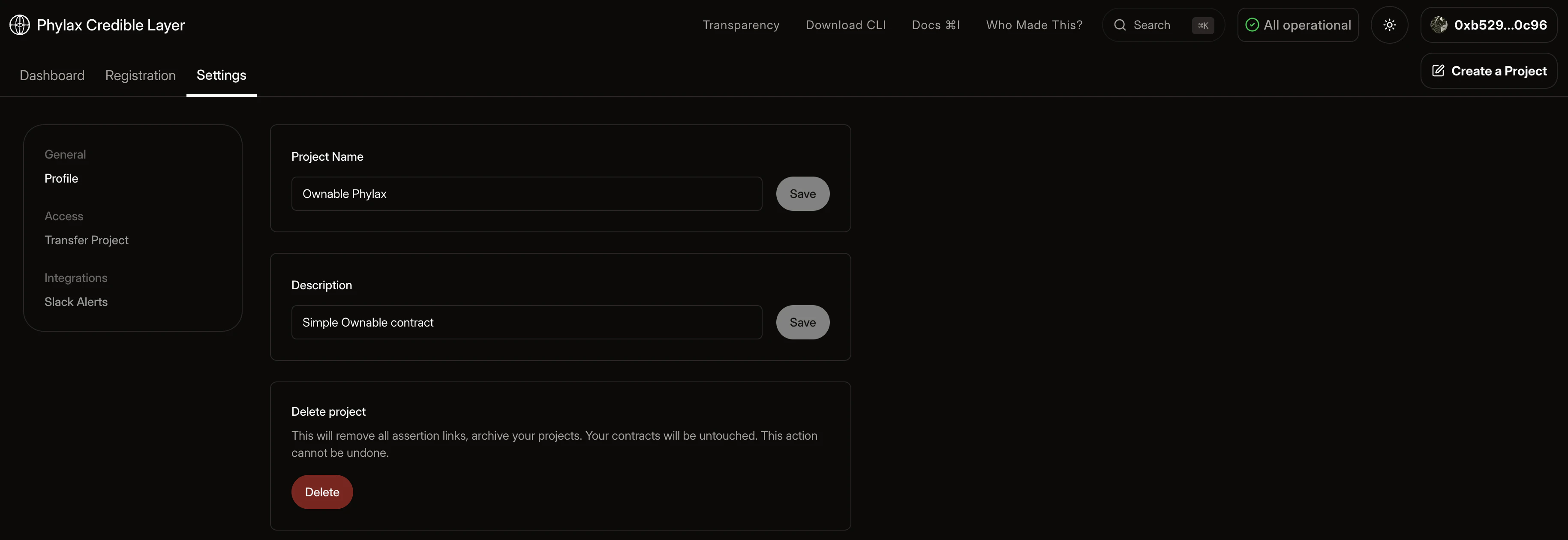
In the project settings tab, you can:
**Update Project Details:**
Here you can update the project name, description, and delete the project.
**Transfer Project Ownership:**
You can transfer projects and contracts (including their associated assertions) to other wallets. This allows you to transfer project ownership while maintaining all linked assertions and contracts.
**Integrations:**
Setup integrations to receive notifications when incidents occur. For now you can setup Slack.
For detailed instructions on deploying assertions, see the [Deploy Assertions guide](/credible/deploy-assertions-dapp#step-4-deploy-the-assertion).
### Project Settings
In the project settings tab, you can:
**Update Project Details:**
Here you can update the project name, description, and delete the project.
**Transfer Project Ownership:**
You can transfer projects and contracts (including their associated assertions) to other wallets. This allows you to transfer project ownership while maintaining all linked assertions and contracts.
**Integrations:**
Setup integrations to receive notifications when incidents occur. For now you can setup Slack.
 ## Project Dashboard
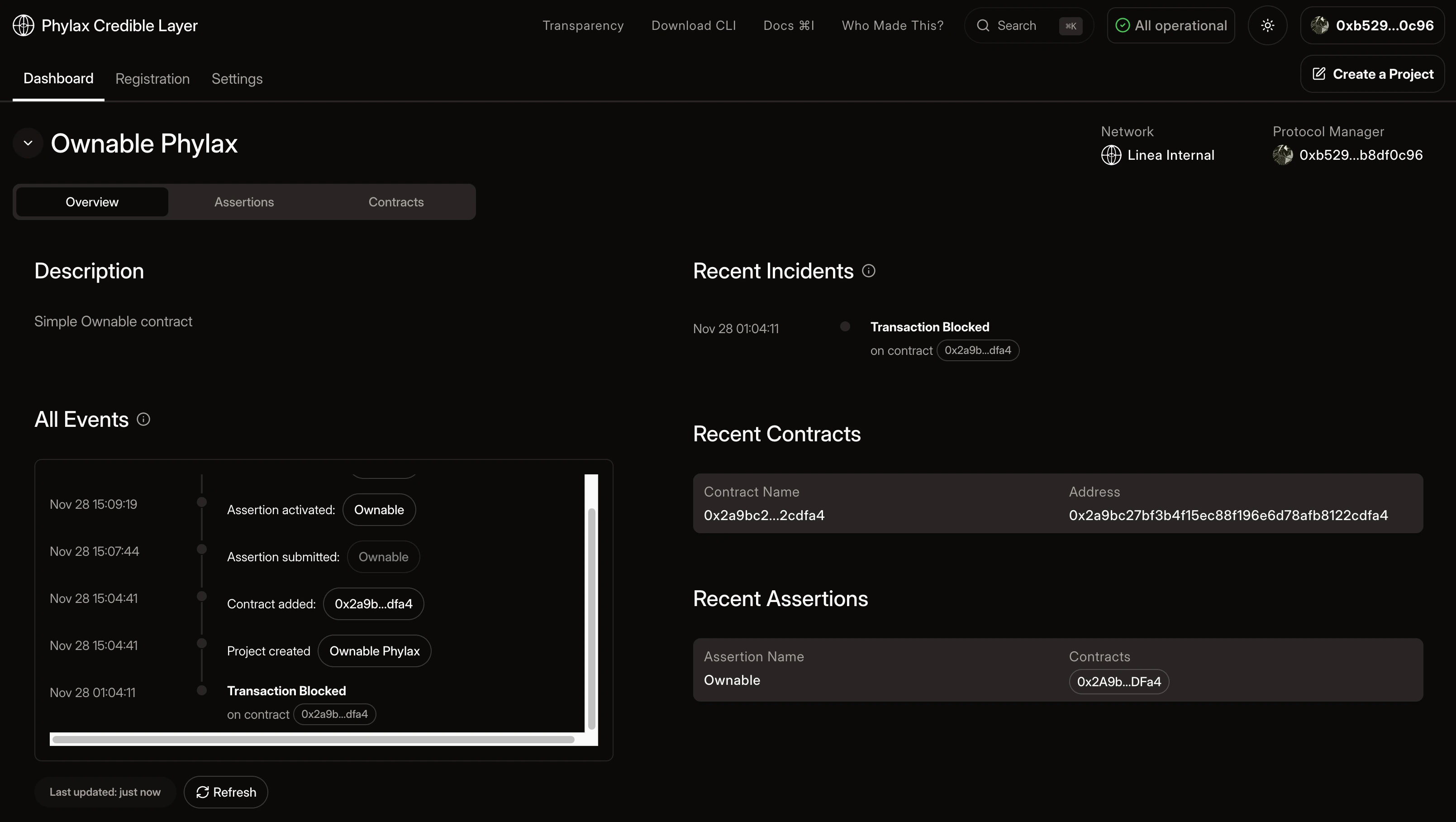
The project dashboard provides a unified view of your project's security:
* **Active Assertions**: See all assertions currently protecting your contracts
* **Assertion Deployment**: Deploy or remove assertions for your project
* **Ready for Deployment**: Assertions submitted via `pcl` that need to be linked and deployed
* **Assertion Status**: Monitor execution status and any triggered violations. Status shows whether assertions are marked for enforcement/staging or enforced/staged
* **Recent Incidents**: View detailed incidents for your project (see [Incidents](/credible/dapp-incidents#project-incidents-manager-view))
* **Project Settings**: Update project details and manage contracts
## Project Dashboard
The project dashboard provides a unified view of your project's security:
* **Active Assertions**: See all assertions currently protecting your contracts
* **Assertion Deployment**: Deploy or remove assertions for your project
* **Ready for Deployment**: Assertions submitted via `pcl` that need to be linked and deployed
* **Assertion Status**: Monitor execution status and any triggered violations. Status shows whether assertions are marked for enforcement/staging or enforced/staged
* **Recent Incidents**: View detailed incidents for your project (see [Incidents](/credible/dapp-incidents#project-incidents-manager-view))
* **Project Settings**: Update project details and manage contracts
 ## Next Steps
Step-by-step guide to using the dApp
Learn how to write assertions for your contracts
Understand ownership requirements
`pcl` command reference
## Next Steps
Step-by-step guide to using the dApp
Learn how to write assertions for your contracts
Understand ownership requirements
`pcl` command reference